Installation
The section will help you with steps to install the JA Stratum quickstart or manual installation.
- Quickstart installation: Replicate Template demo to your server.
- Manual installation: install template, plugin manually on your Joomla site
System requirement
Please make sure your system meets the following requirements:
Software
- Software: PHP: 8.1+ (8.3 recommended)
Databases
- MySQL(InnoDB support required): 8.0+
- MariaDB: 10.4 +
Web Servers
- Apache 2.4+
- Microsoft IIS 10+
- Nginx 1.18+ recommended
Browser requirement
- Firefox (latest version)
- Google Chrome (latest version)
- Microsoft Edge (latest version)
- Safari (latest version)
Development Environment
During the development process, Localhost is preferred. You can use the following servers on your PC to develop your site.
Windows
- WAMP server
- XAMPP for Windows
Linux
- LAMP Stack
- XAMPP for Linux
Mac OS
- MAMP & MAMP Pro
- XAMPP for Mac OS
Download packages
JA Stratum download section includes the following files:
- Quickstart package for Joomla 6
- JA Stratum template
- T4 Framework plugin
- JA ACM Module
- JA Extension manager component
Quickstart installation
Quickstart installation allows you to replicate the demo site to your server with all extensions installed and demo content
Manual Installation
Installing the JA Stratum, T4 framework, and other extensions on your existing Joomla website.
From your back-end setting panel, go to: "Extensions > Extension Manager", browse the extension installation files then hit the "Upload and Install"
- T4 Framework plugin
- JA Stratum template
- JA ACM module
- JA Extension manager component
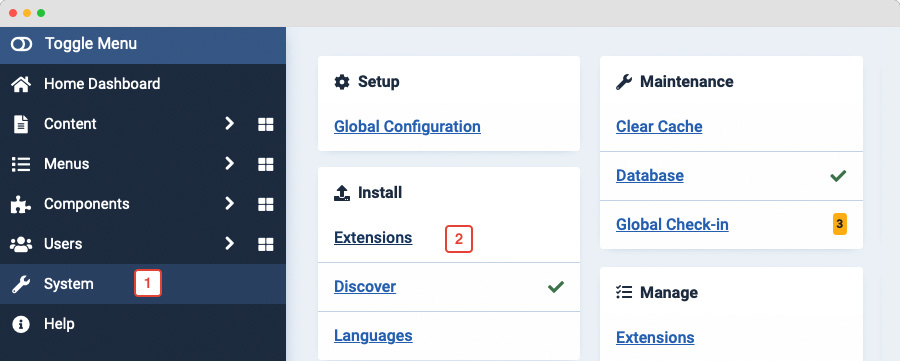
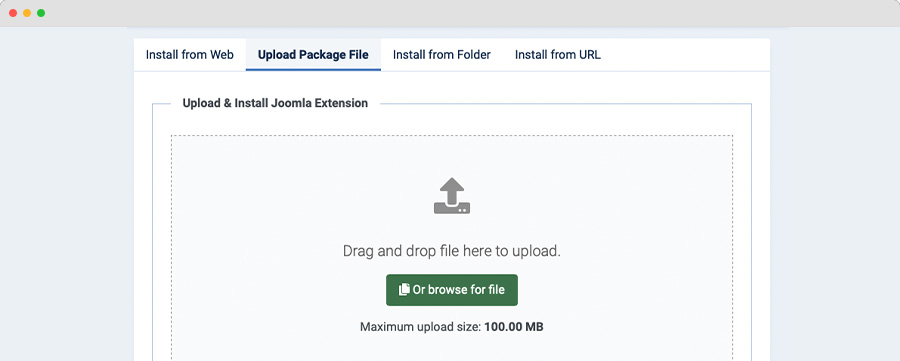
By default, the T4 plugin will be auto-enabled after installation. You can check this by going to "Extensions > Plugin Manager" then find T4 Plugin.
Set JA Stratum as default template style
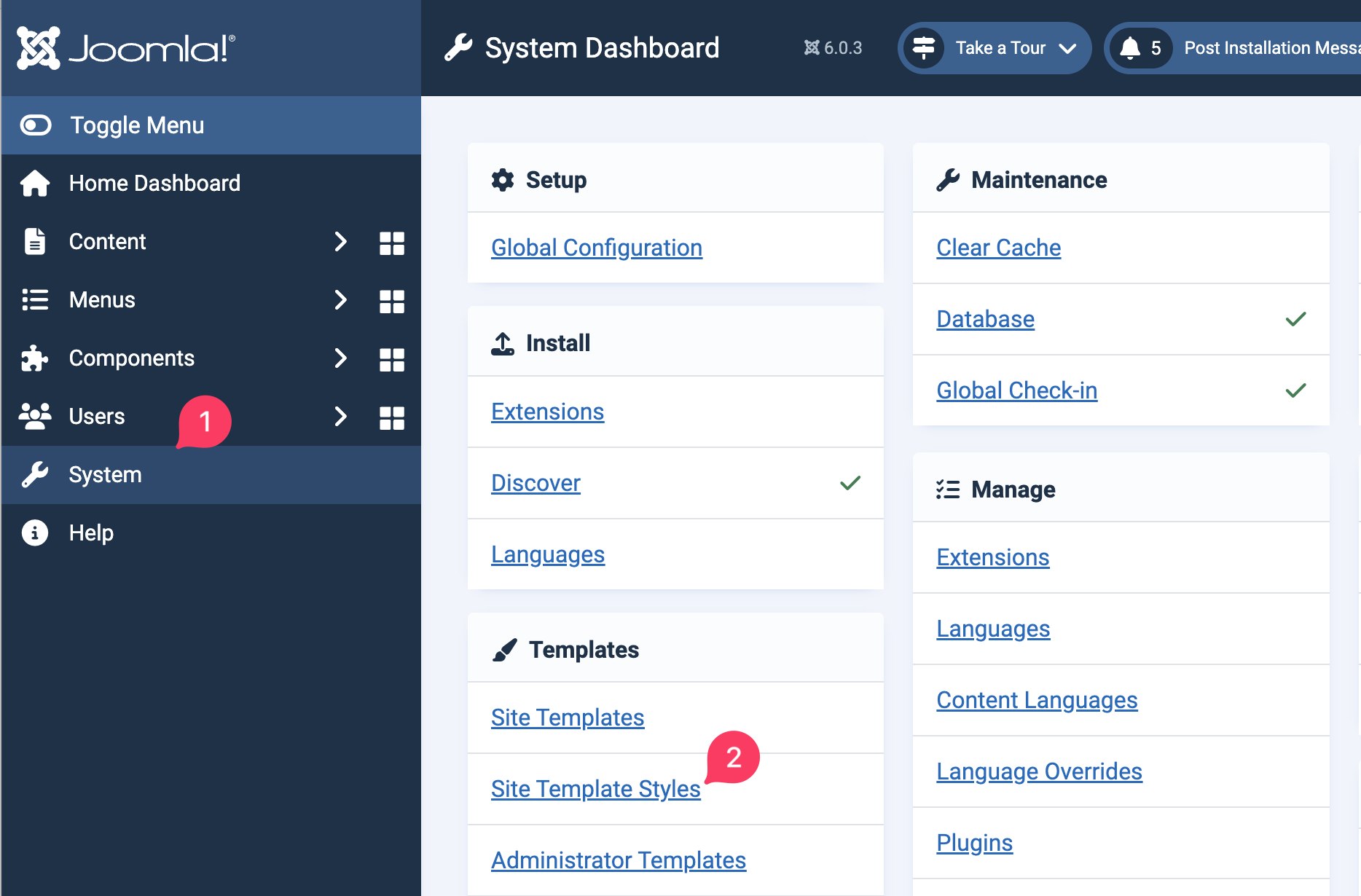
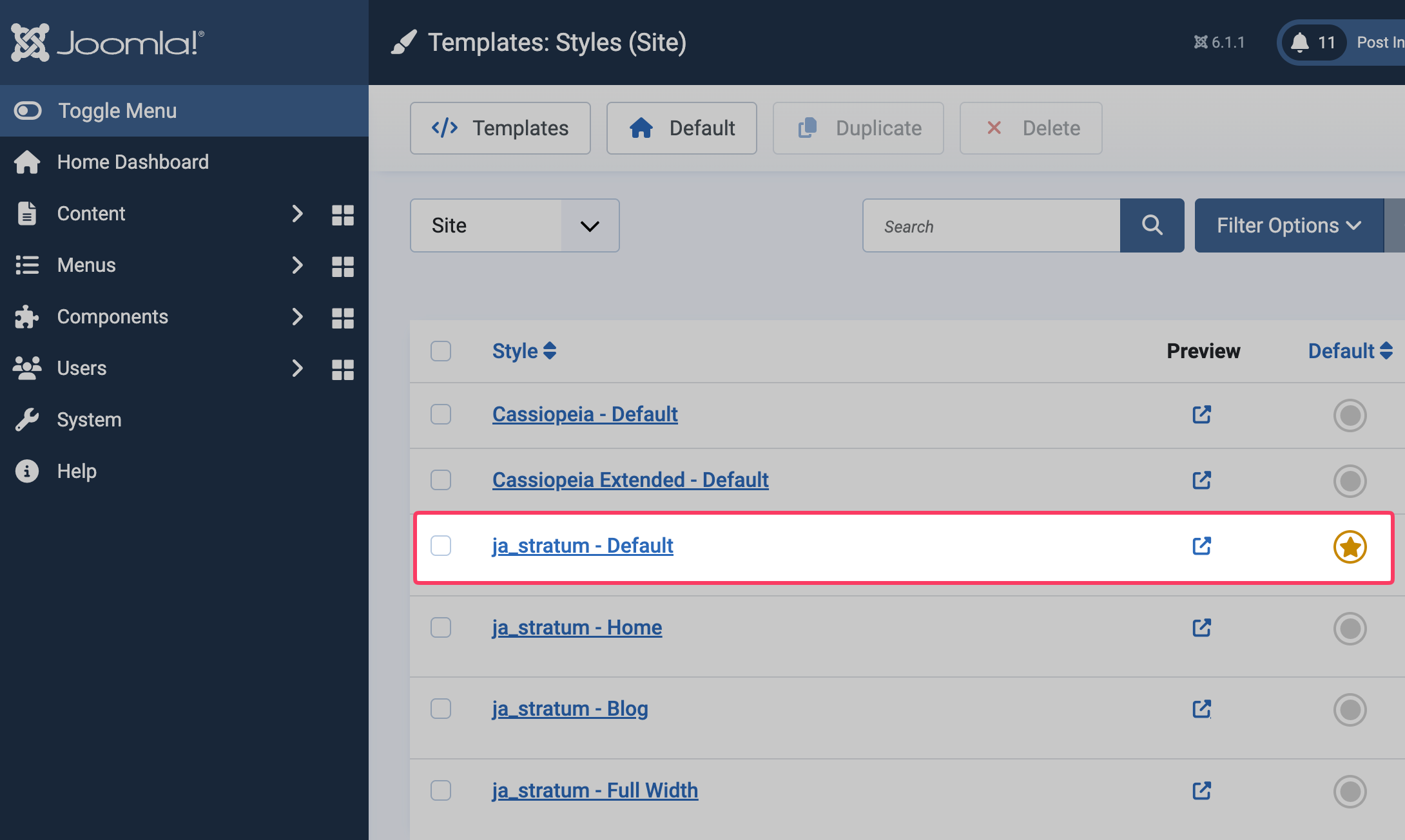
Go to: "System > Site Template Styles", set JA Stratum template style as your default template style.
Template folder structure
This section is to help you understand the folder structure of the JA Stratum template, where to find the files you want.
JA Stratum template
JA Stratum template is built on the T4 Framework so its folder structure is almost the same as any other JA Templates that are developed with T4 Framework.
/templates/ja_stratum/
	+-- scss/                 /*  all SCSS files */
	+--     scss/tpl                 /*  theme tpl SCSS files */
	¦    +--  _acm.scss
	¦    +--  _all.scss
	¦    +--  _offcanvas.scss
	¦    +--  _styles.scss
	¦    +--  _type.scss
	¦    +--  _utilities.scss
	¦    +--  _variables.scss
	¦    +--  _vars.scss
	¦    +--  jpages.scss
	¦    +--  rtl.scss
	¦    +--  template.scss
	¦    +--  bootstrap.scss
	¦    +--  _components.scss
	¦    +--  _forms.scss
	¦    +--  _global.scss
	¦    +--  _joomla.scss
	¦    +--  _megamenu.scss
	¦    +--  _modules.scss
	¦    +--  _navigations.scss
	+-- scss/tpls
	+-- css/                     /*compiled files from SCSS*/
	¦    +-- template.css
	¦    +-- rtl.css
	¦    +-- acm.css
	¦    +-- jpages.css
	¦    +-- off-canvas.css/
	¦    +-- offline.css/
	+-- html/               /*override modules and Joomla com_content*/
	¦    +-- com_content/
	¦    ¦    +-- article/
	¦    ¦    +-- category/
	¦    ¦    +-- featured/
	¦    +-- com_contact/
	¦    ¦    +-- contact/
	¦    +-- mod_articles_categories/
	¦    +-- mod_articles_category
	¦    +-- layouts/
	¦    +-- ...
	+-- fonts/
	+-- js/
	¦    +--owl-carousel/
	¦    +--html5lightbox/
	¦    +-- bootstrap.bundle.js
	¦    +-- template.js
	¦    +-- imagesloaded.pkgd.js
	¦    +-- isotope.pkgd.js
	+-- images/
	+-- language/
	+-- templateDetails.xml
	+-- templateInfo.php/
	+-- templateHook.php/
CSS and SCSS customization
Any customization is not recommended in the t4 plugin.
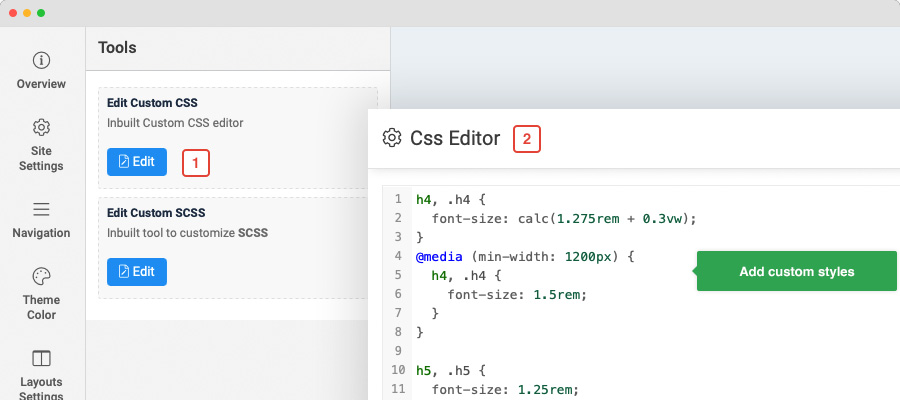
To customize your site style, you can use either CSS or SCSS customization tool.
Template configuration
1. Layout configuration
JA Stratum supports different layouts by default and you can create more layouts using layout builder.
Assign Layout for a template style
To assign a layout for a JA Stratum template style, open the template style » Layout setting panel » and assign a layout for the template style.
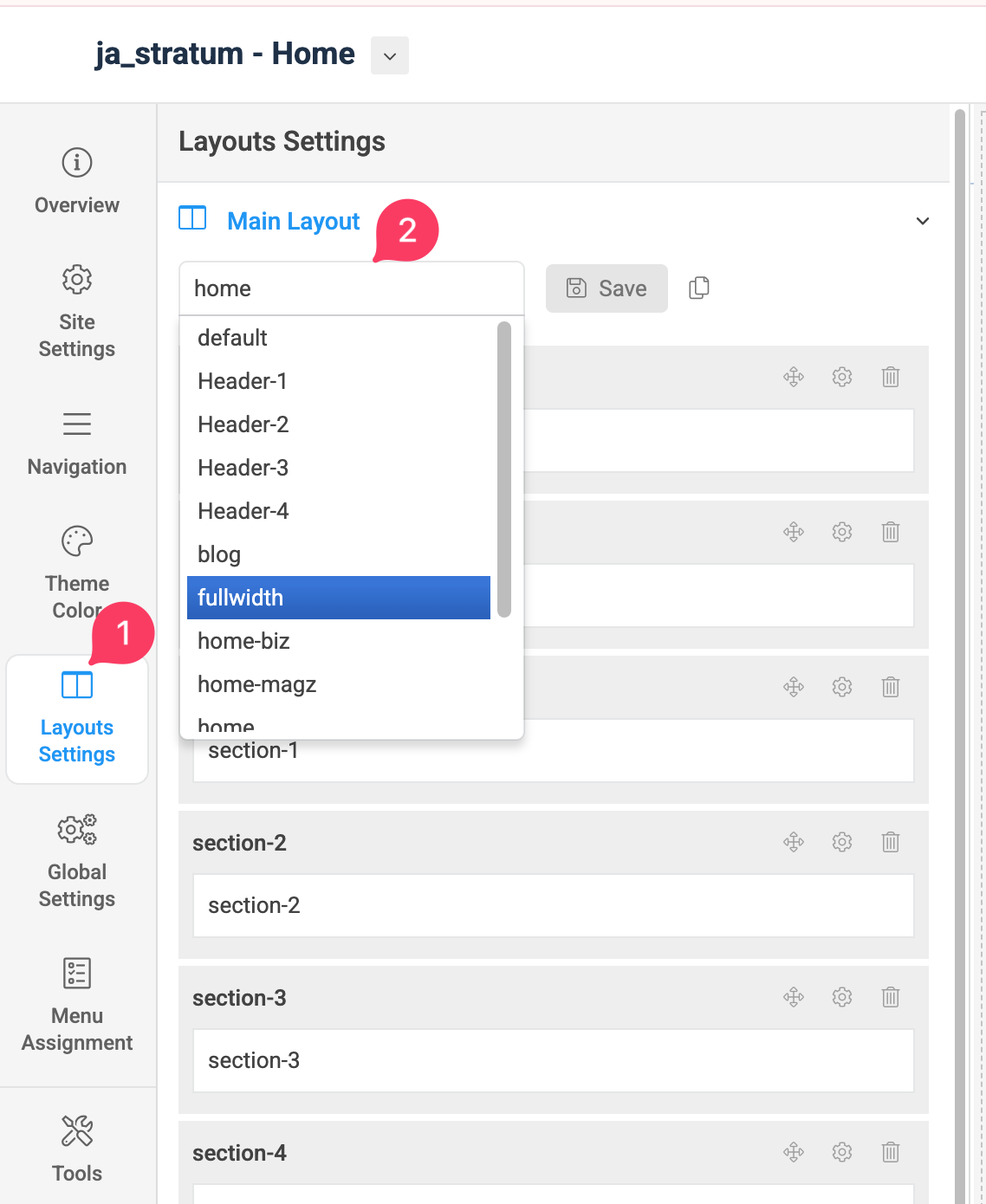
Note: You can create multiple template styles with different layouts assigned. Then assign each template style to specific pages.
2. Site settings
Logo settings
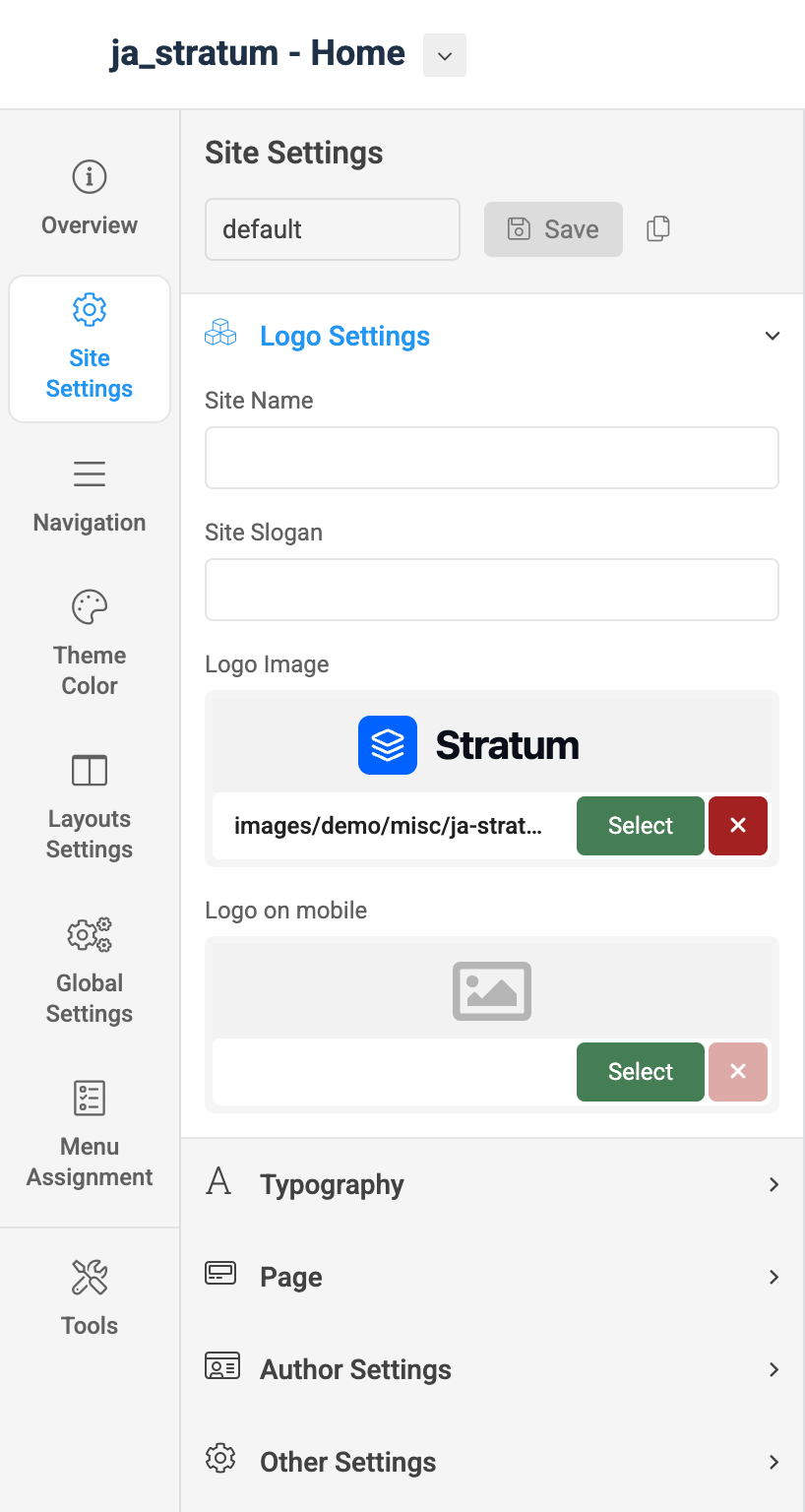
The Logo settings are present under Site configuration > Logo Settings.
For the logo, you can select to use an image logo or text logo. You can also select the different logos for mobile view.
Typography settings
The typography includes the global settings for font family, font weight, and line height.
You can enable the custom font setting for heading and navigation (menu).
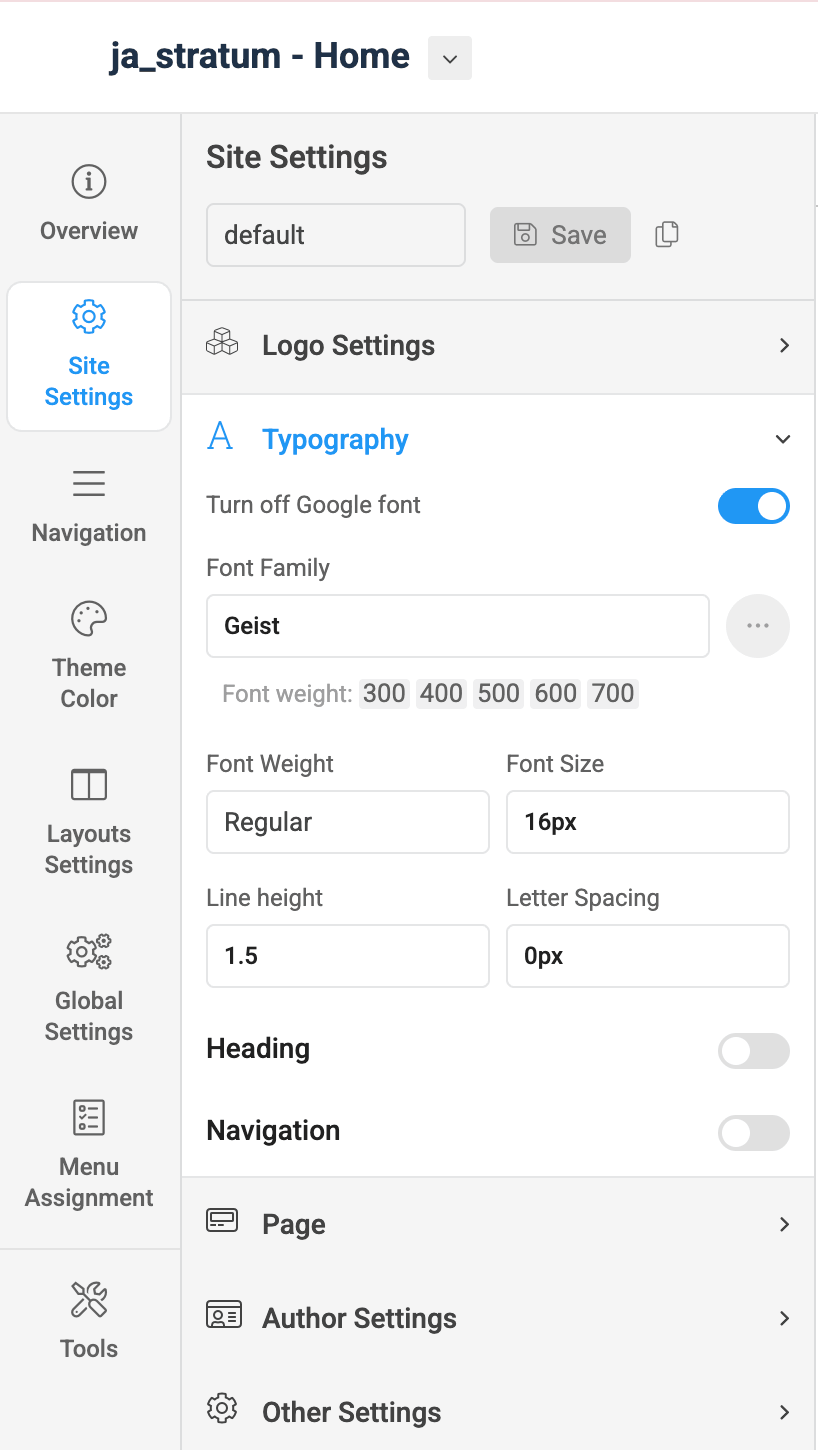
Local font supported: due to the GDPR issue, you can disable Google font, and use the local font that is already supported at core.
Other settings:
- Dark/Light mode: Enable/disable Dark/light mode
- Favicon setting: add custom favicon
3. Navigation configuration
JA Stratum supports Megamenu for Desktop layout and dropdown or Off-canvas for Mobile layout.
Megamenu setting
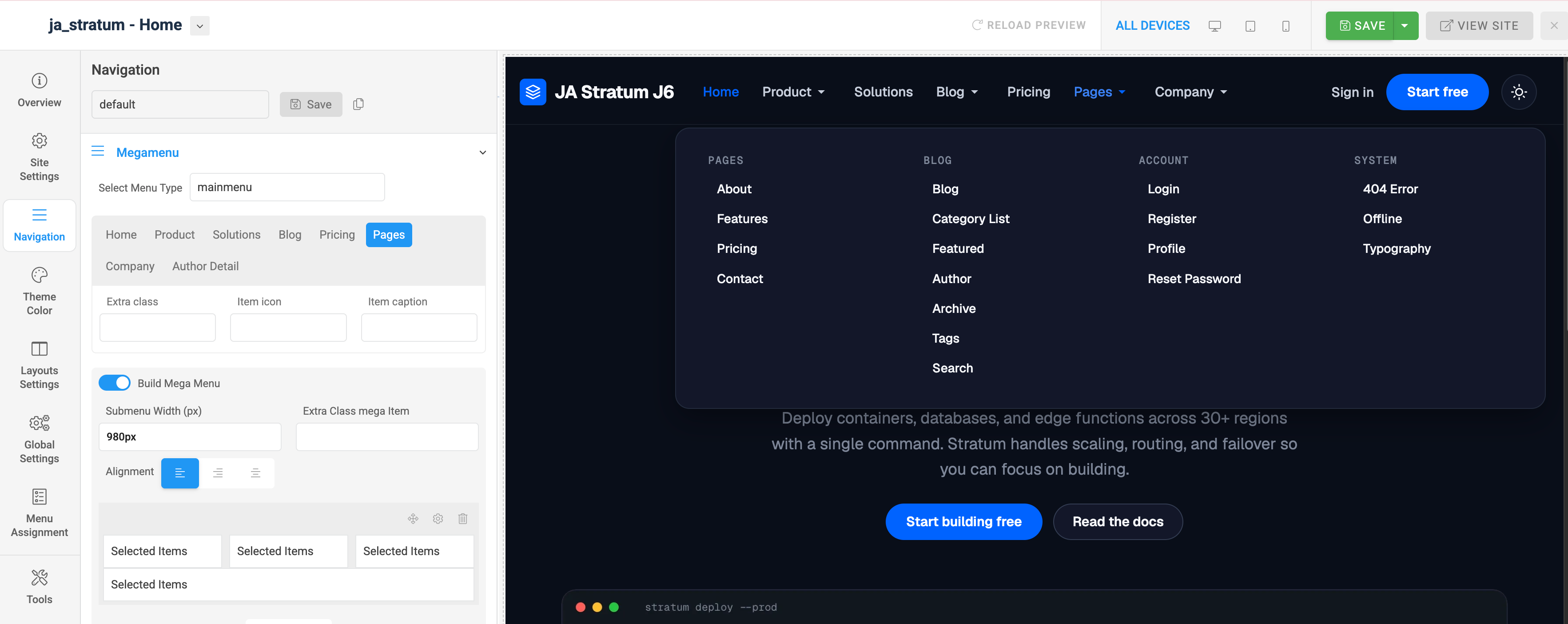
Go to Navigation > Megamenu, select a menu and configure the megamenu. You can build a mega menu with multiple rows, each row can include multiple columns. You can assign menu items, modules or a module position to each column.
Off-canvas Menu setting
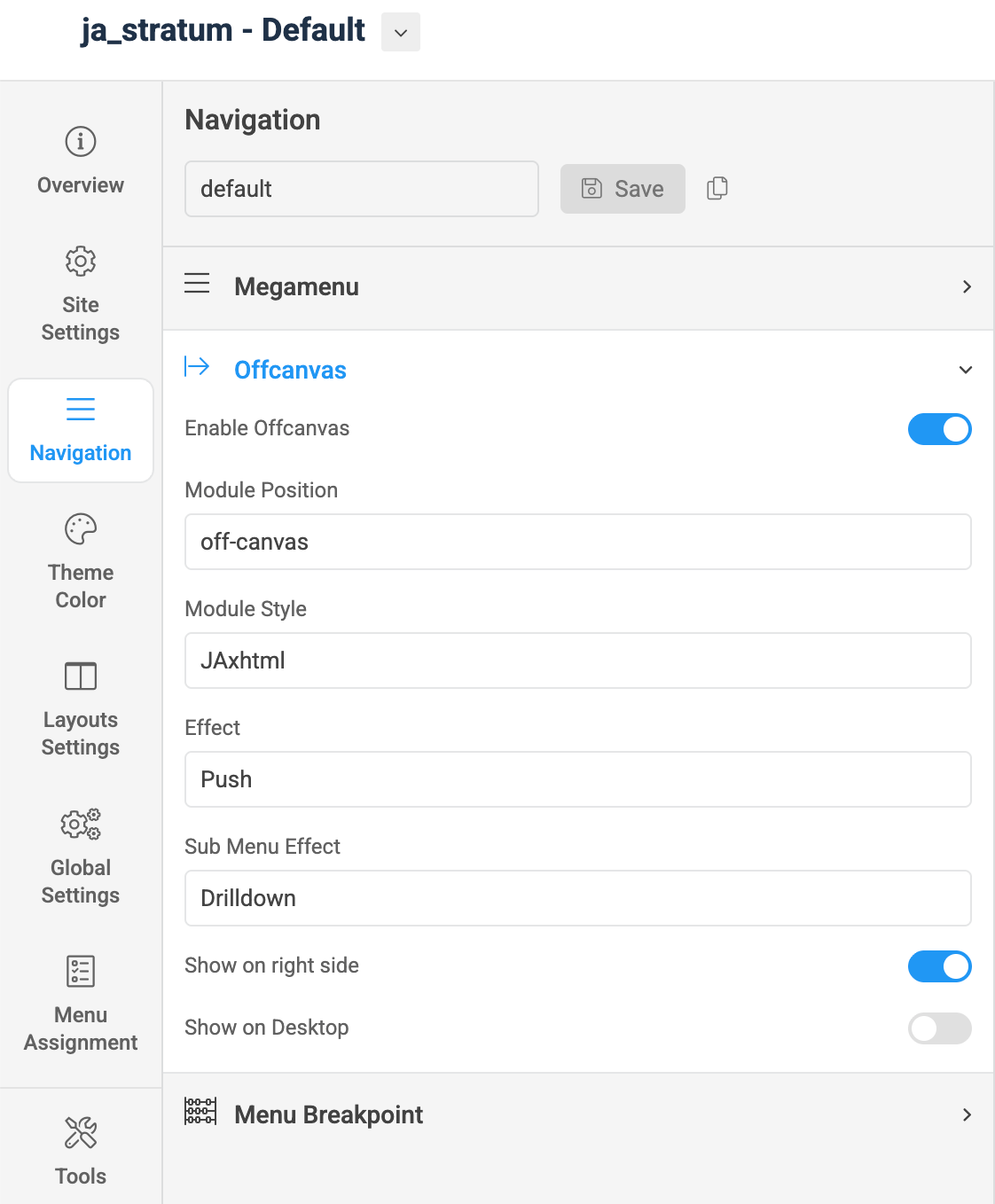
Enable Off-canvas (it is enabled by default), select module position, module style and other options.
Next, create a menu module, assign it to the position: off-canvas.
4. Theme color settings
The theme color allows you to use the color picker to change color for brand colors, base colors, main menu colors, and footer colors.
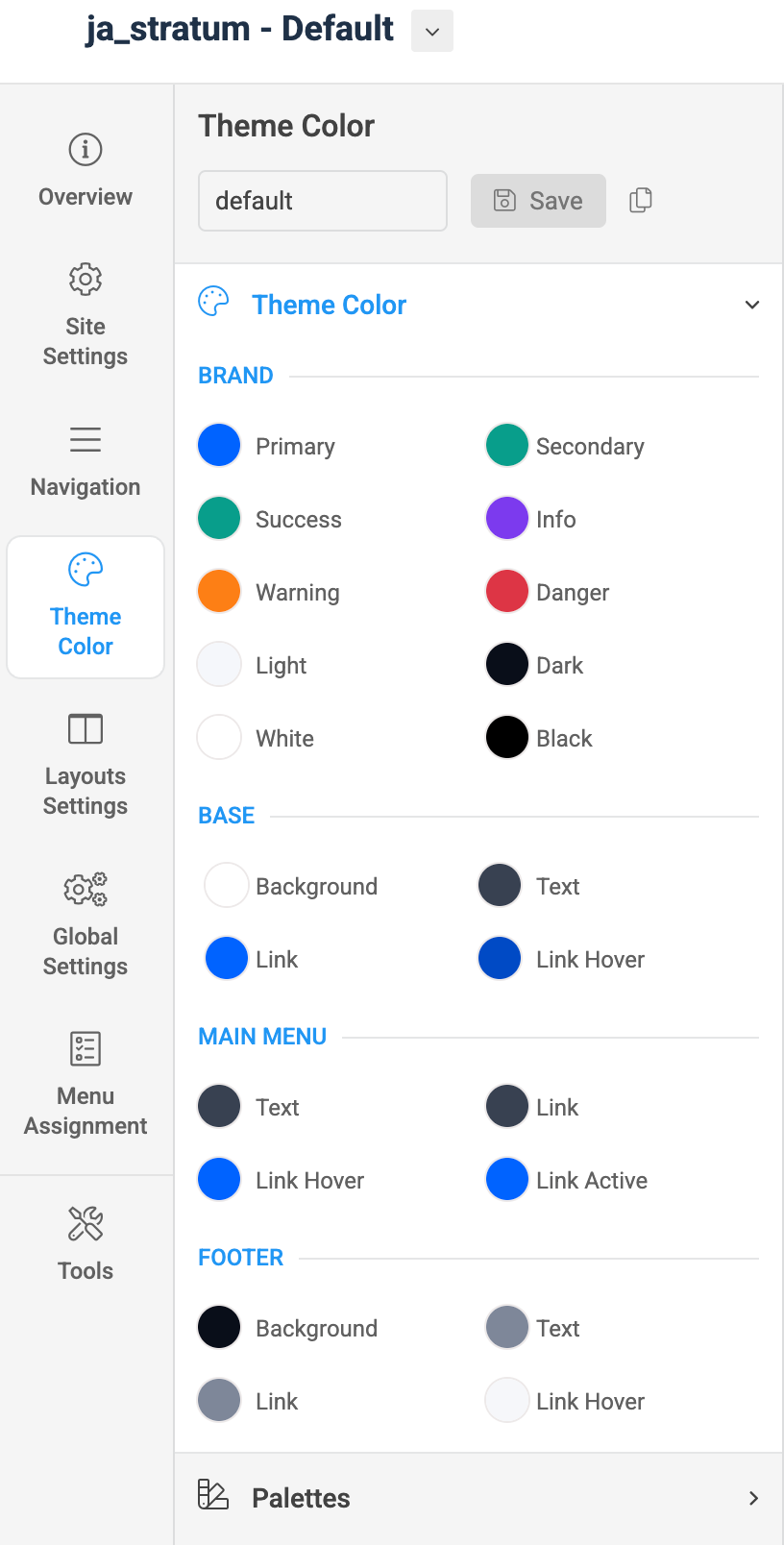
You can view the changes in the website preview on the right panel.
5. Global settings
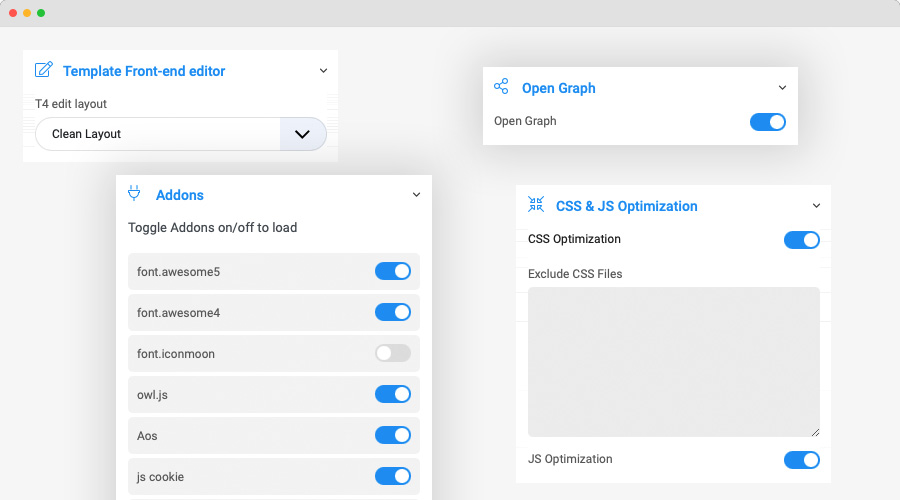
JA Stratum template global settings include:
- T4 edit layout: this is the front-end editor (article, module) layout setting, you can select to use clean layout or full position layout
- CSS & JS optimization: JS and CSS optimization is the process of making your website smaller and faster to load by minifying the JS and CSS codes.
- Custom Code: You can insert any CSS, JS, meta tags, links, and verification codes using the custom code option. With multiple options to add custom to specific tags.
- Add-ons: includes settings to enable or disable font icons like Font Awesome, Iconmoon. When an Addon is disabled, its CSS and JS will not be loaded on your website, this is to help keep your site clean and load faster.
- Open Graph:
6. CSS & SCSS editor tool
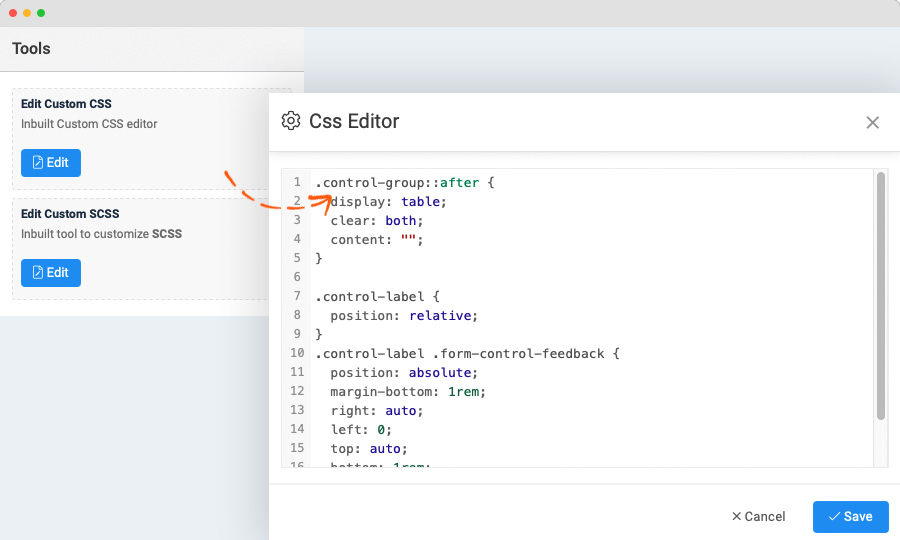
Customizing style for your site is even simpler with the inbuilt custom CSS Editor. In the Tools panel, hit the Edit Custom CSS button and you can add your own custom CSS rules to the editor.
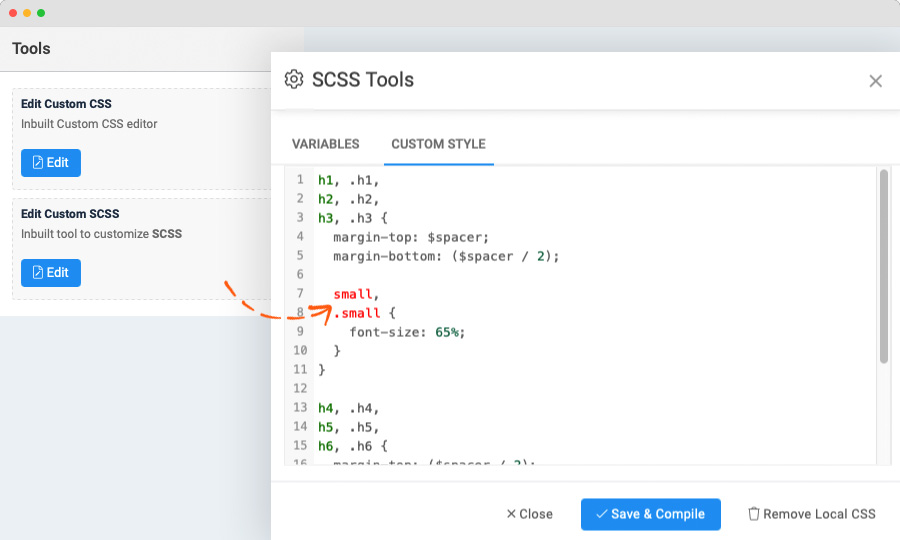
You can override the default variables in the Variables customization editor, as well as the adding custom SCSS.
Build Demo Pages
Home page
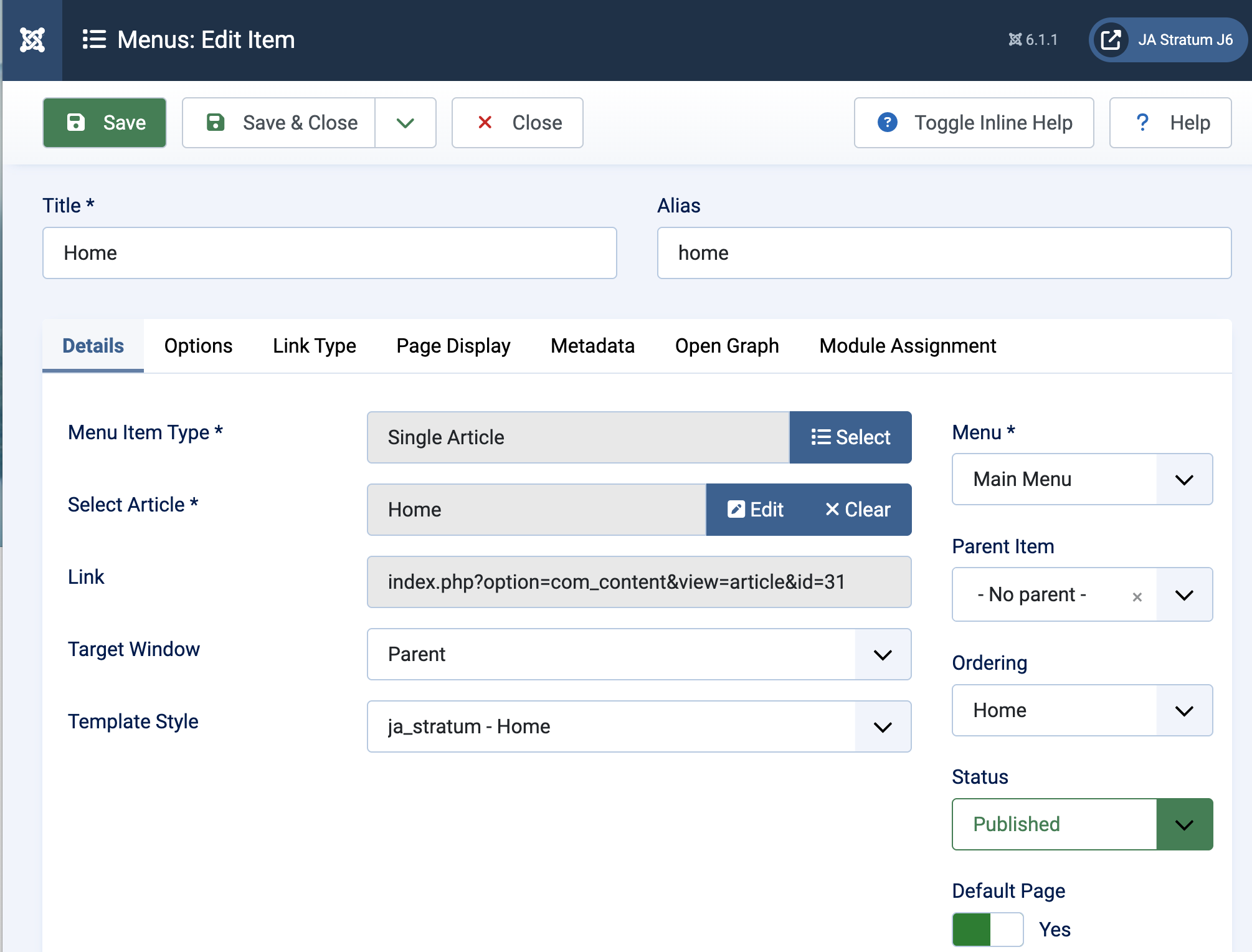
Step 1 - Create menu item
Go to Menu » Main menu, add a new menu item, select Articles » Single Article menu type.
Step 2 - Assign content to the Home page
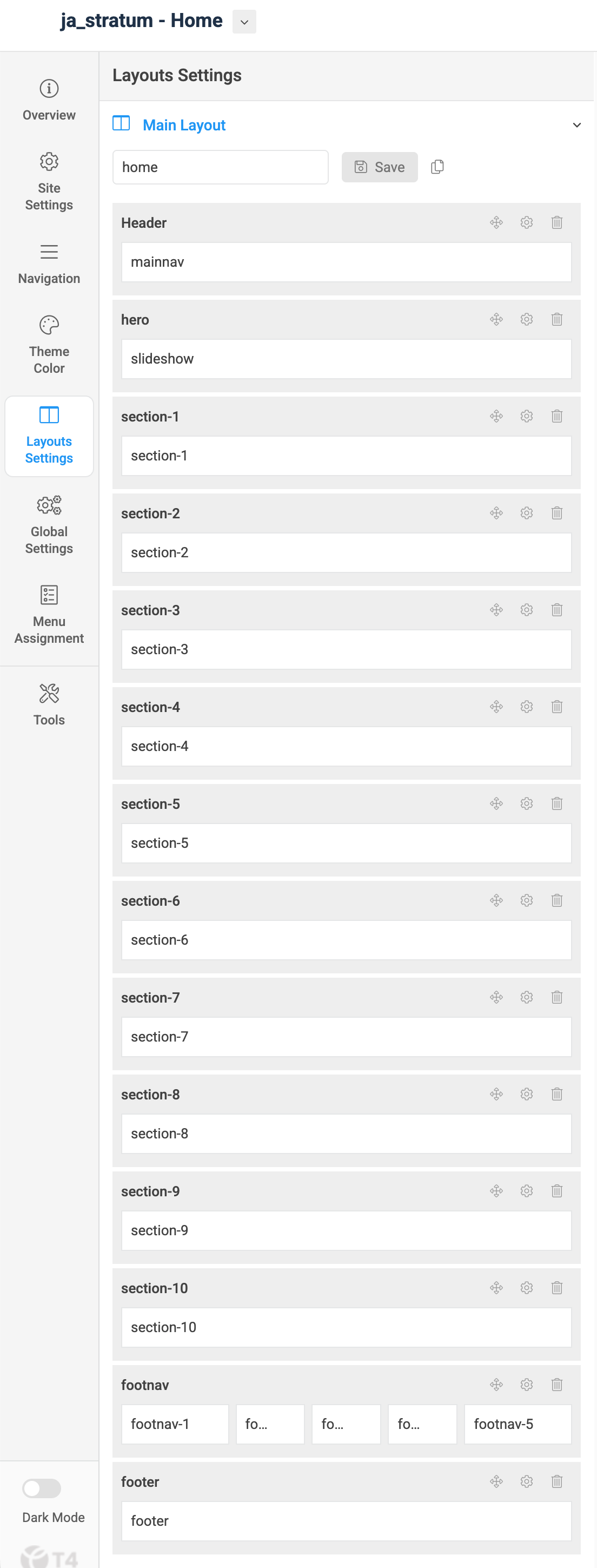
The home page includes multiple sections, each section is a module.
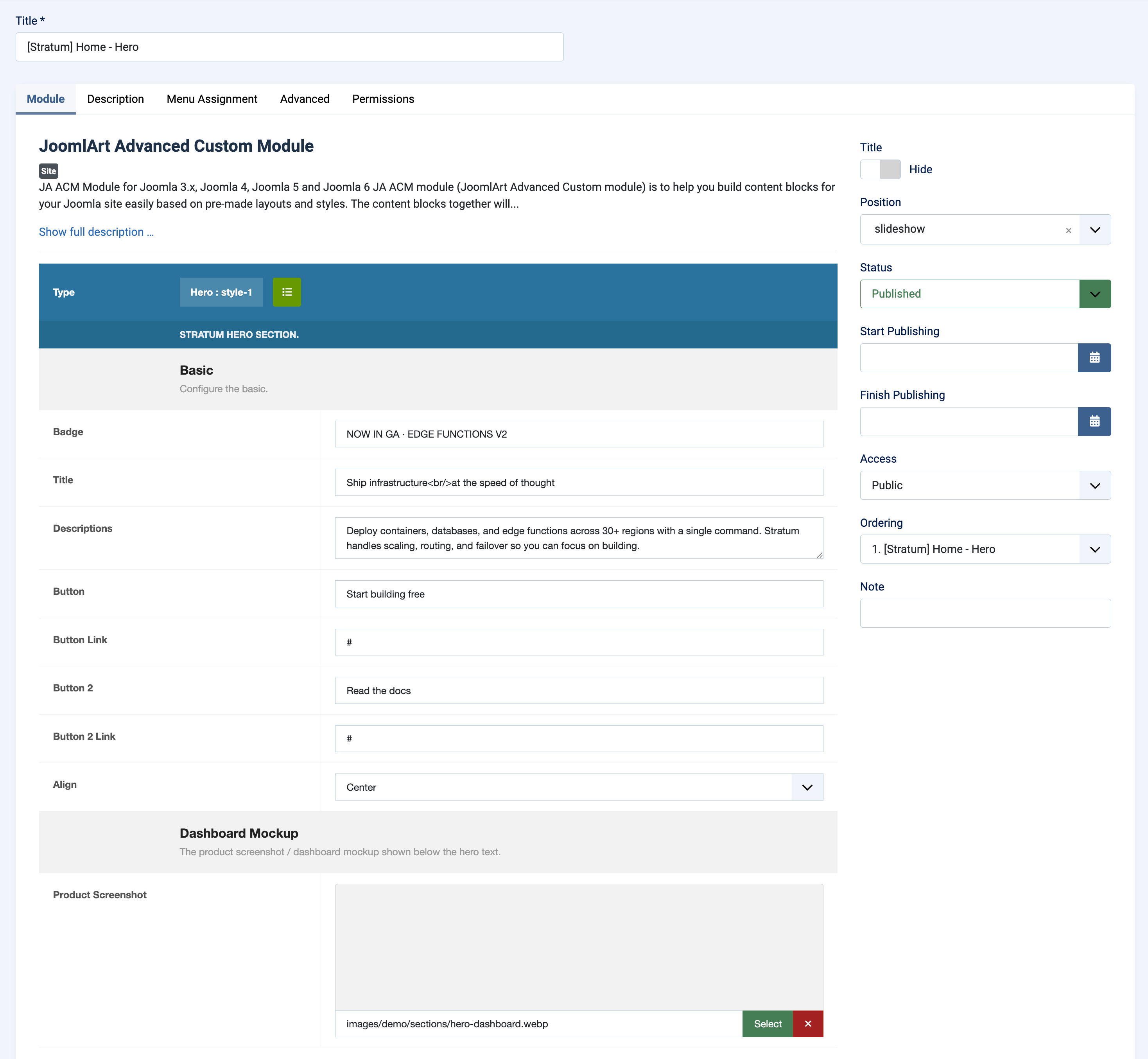
1. [Stratum] Home - Hero: JA ACM Module

Hero : style-1
Module position: slideshow
Module Suffix: NOT USED
Layout: Default
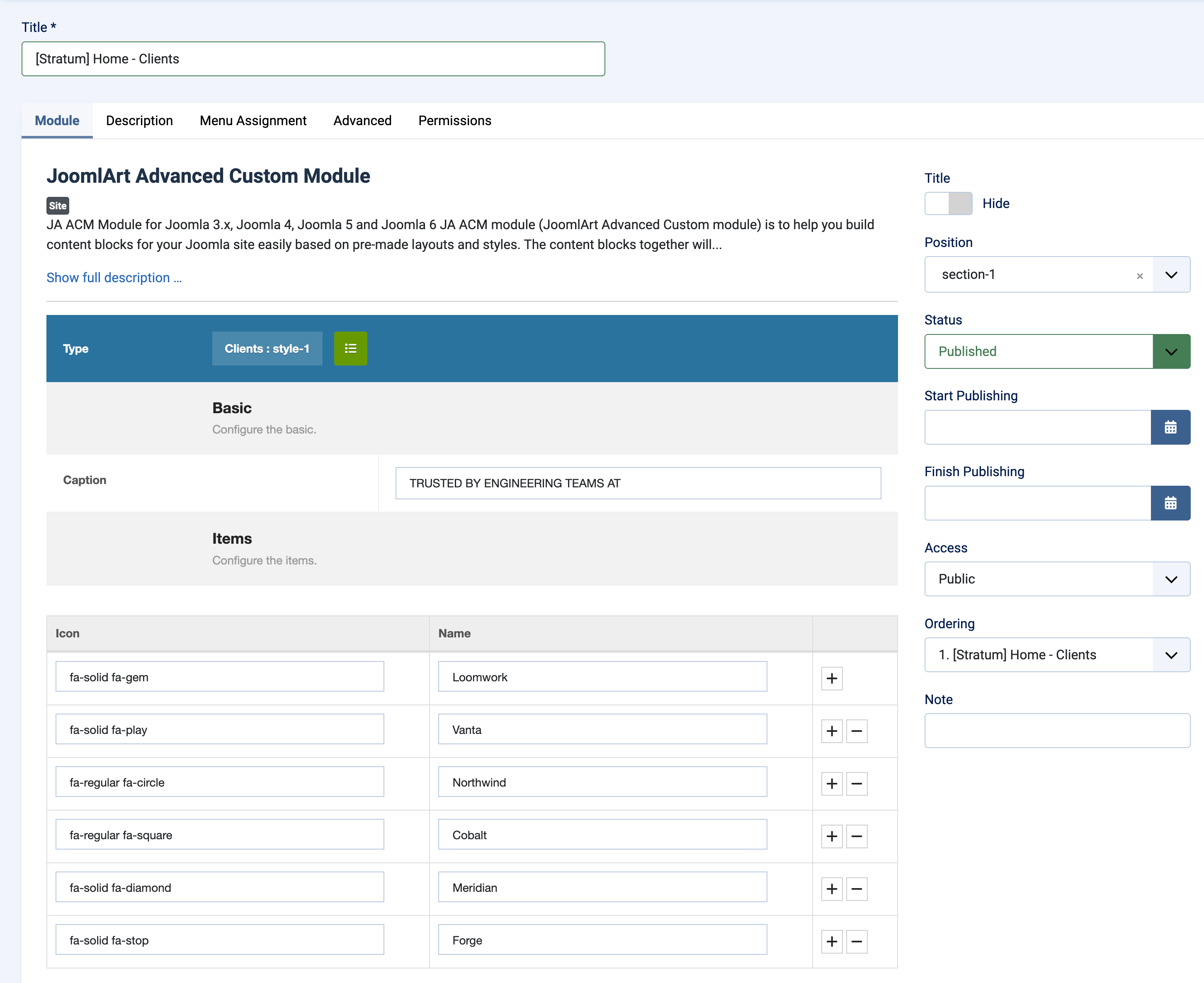
2. [Stratum] Home - Clients: JA ACM Module

Clients : style-1
Module position: section-1
Module Suffix: NOT USED
Layout: Default
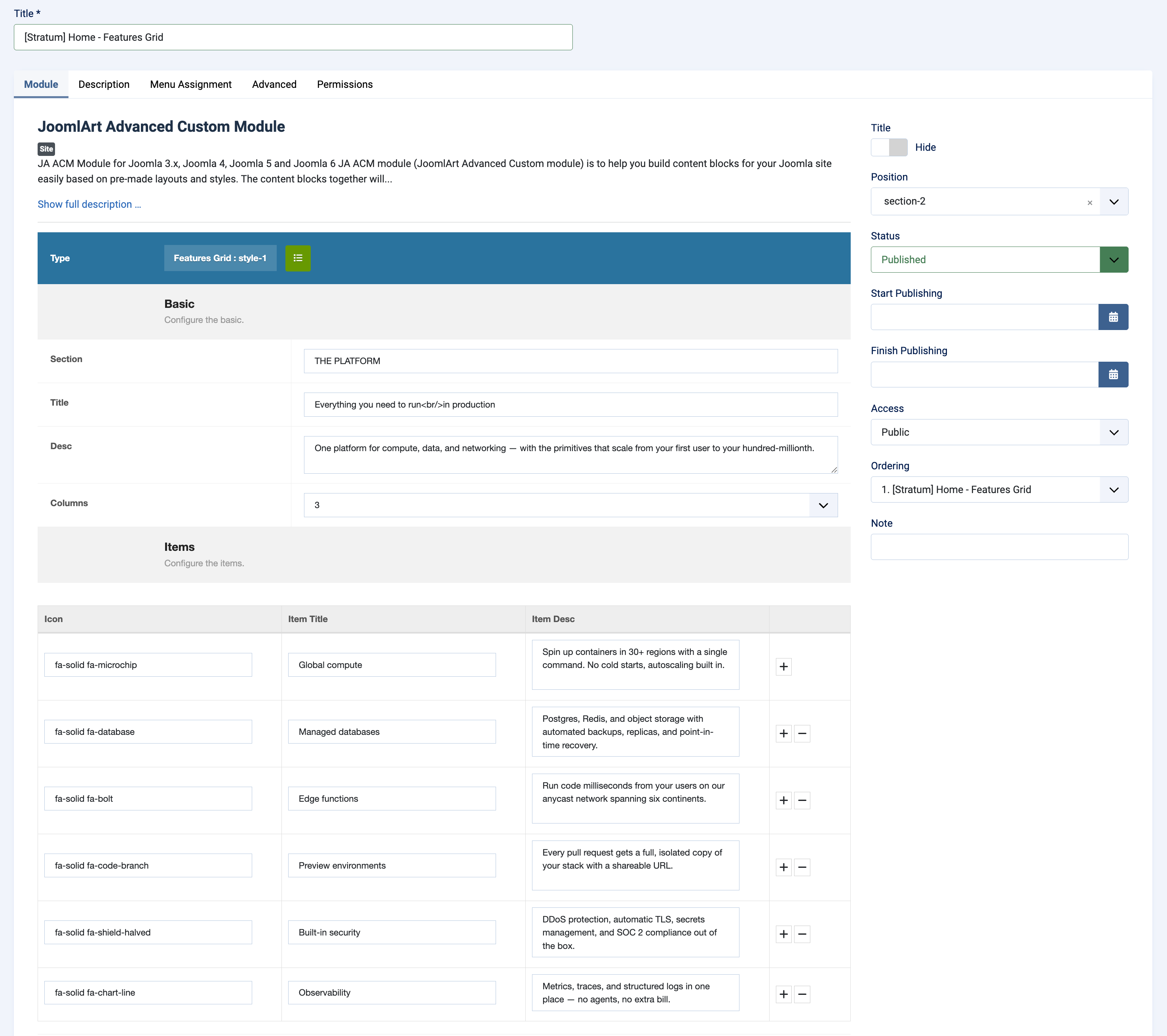
3. [Stratum] Home - Features Grid: JA ACM Module
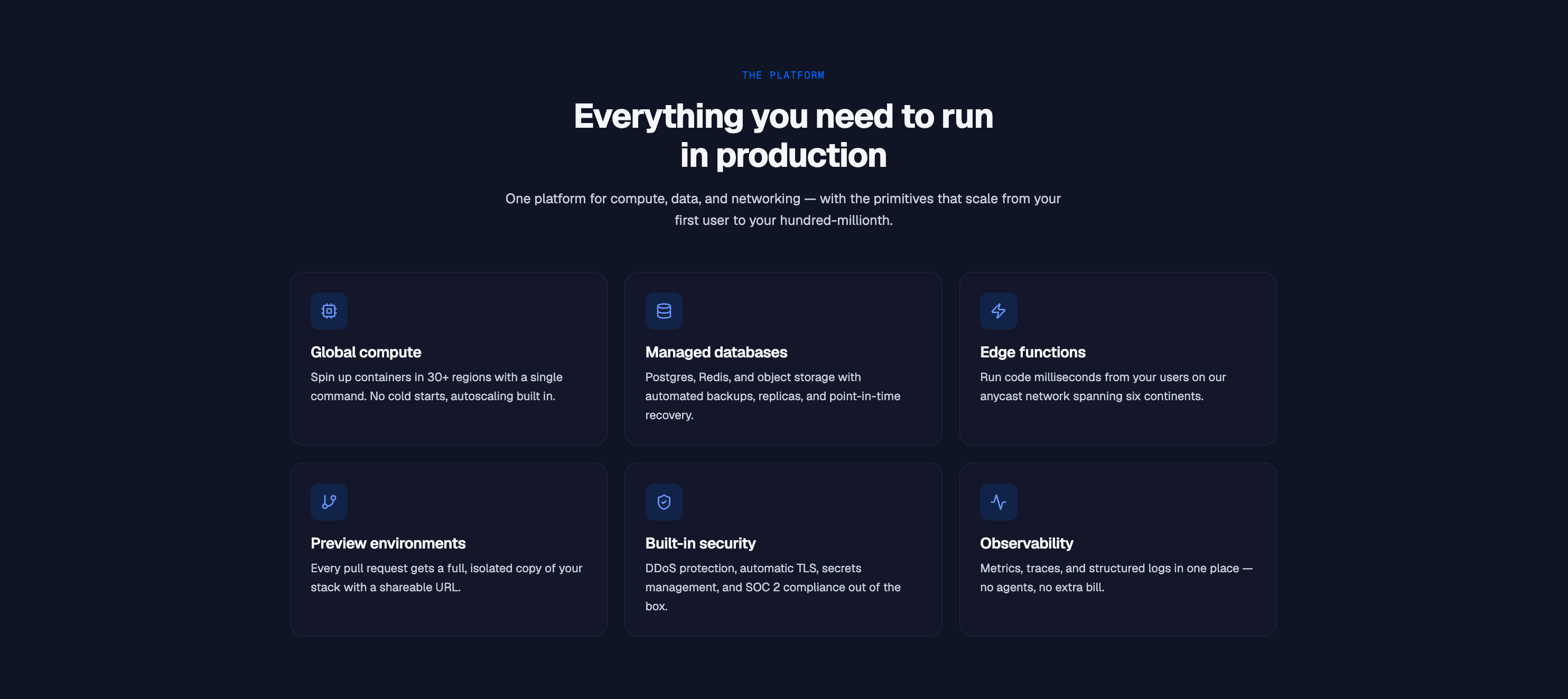
Features Grid : style-1
Module position: section-2
Module Suffix: NOT USED
Layout: Default
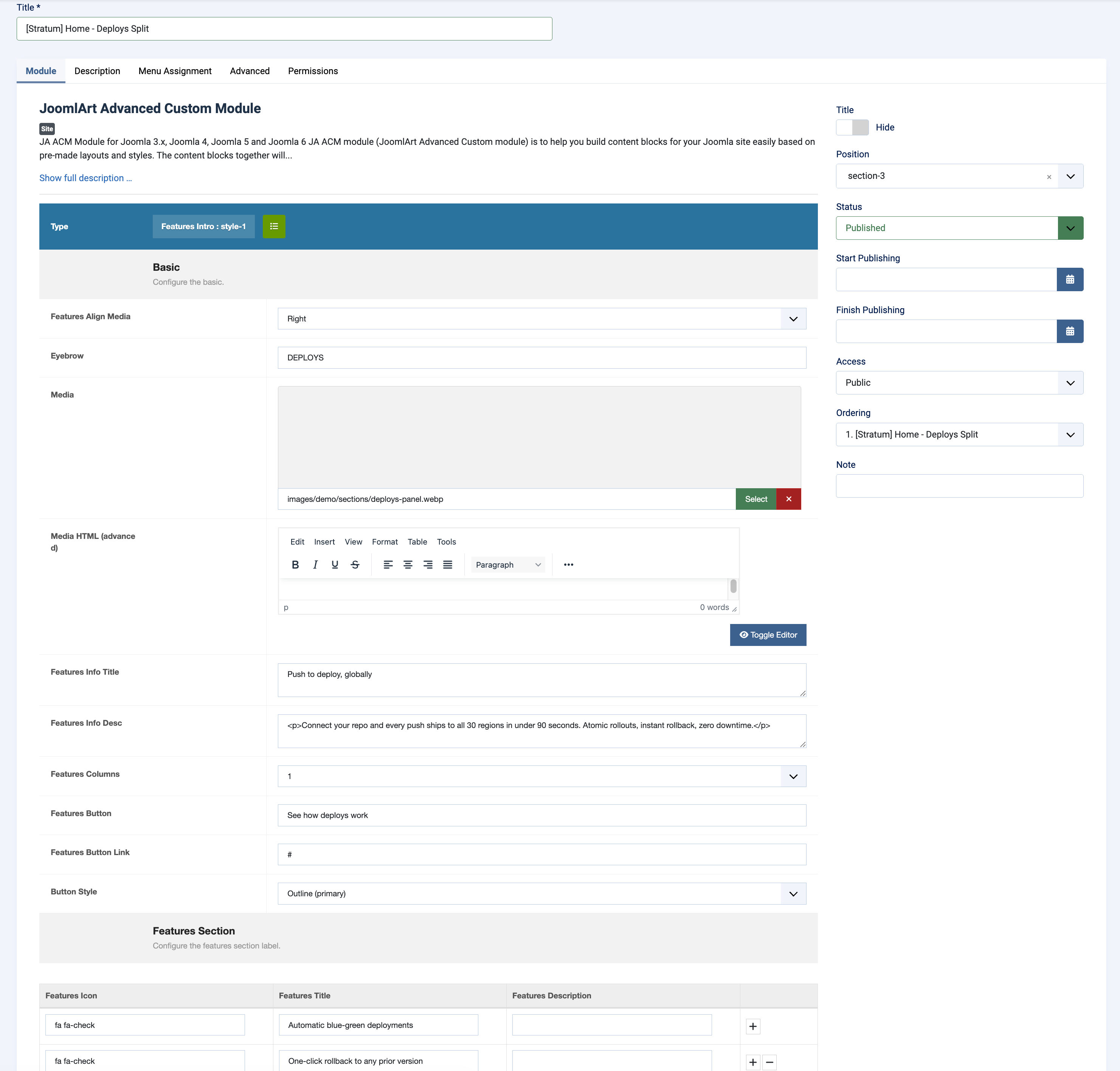
4. [Stratum] Home - Deploys Split: JA ACM Module
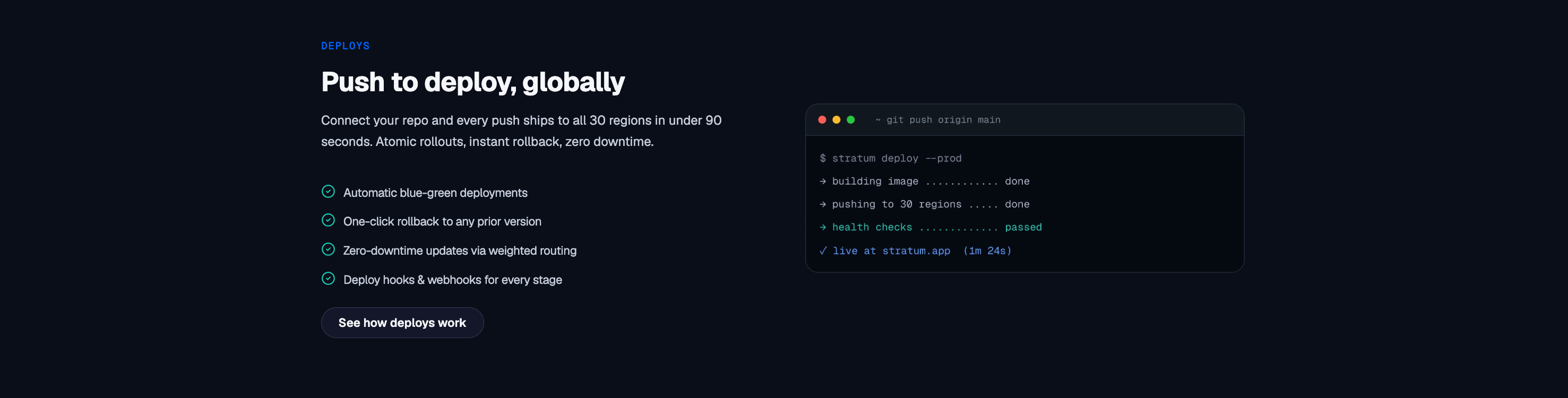
Features Intro : style-1
Module position: section-3
Module Suffix: NOT USED
Layout: Default
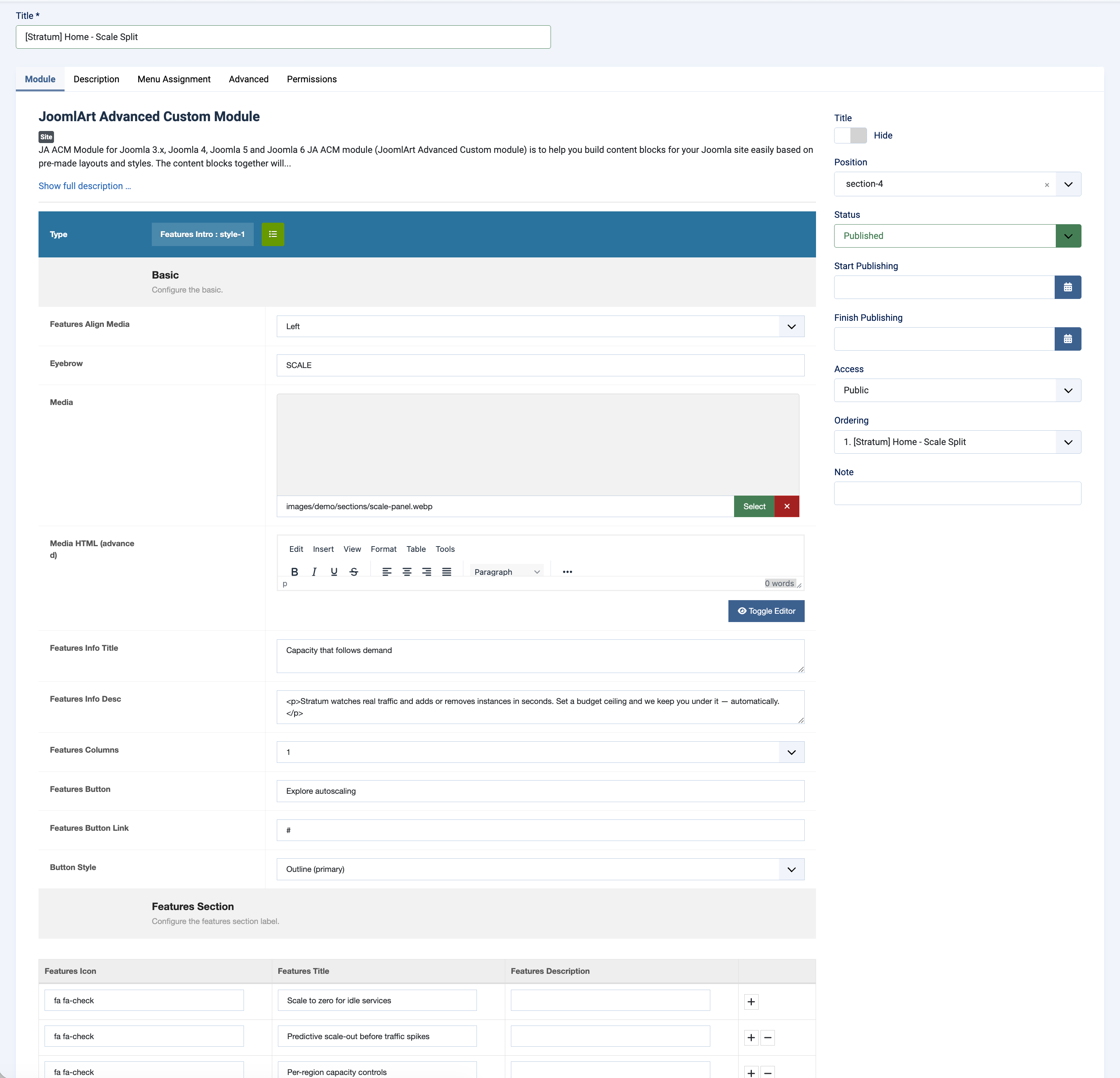
5. [Stratum] Home - Scale Split: JA ACM Module

Features Intro : style-1
Module position: section-4
Module Suffix: NOT USED
Layout: Default
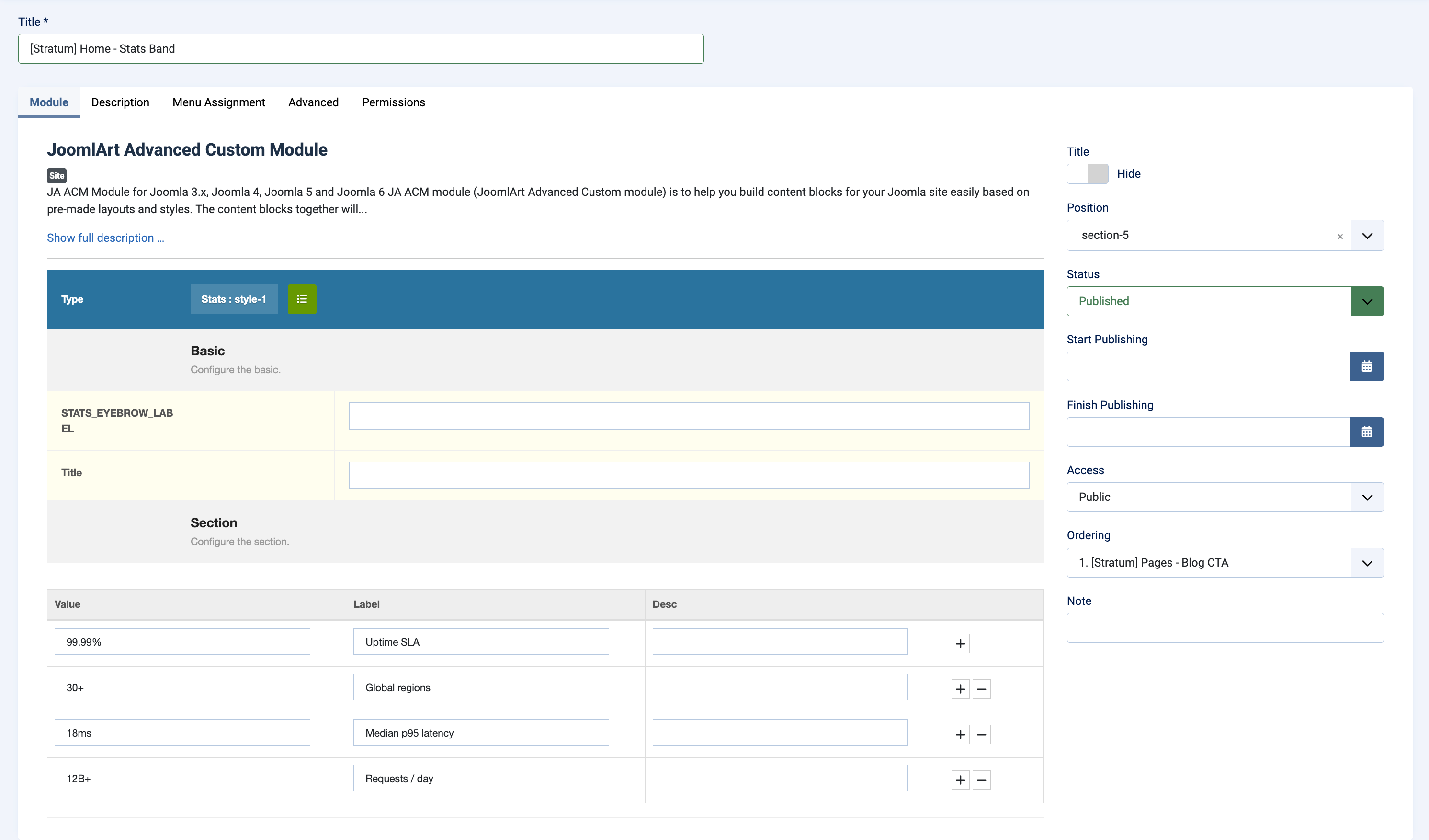
6. [Stratum] Home - Stats Band: JA ACM Module

Module position: section-5
Module Suffix: NOT USED
Layout: default
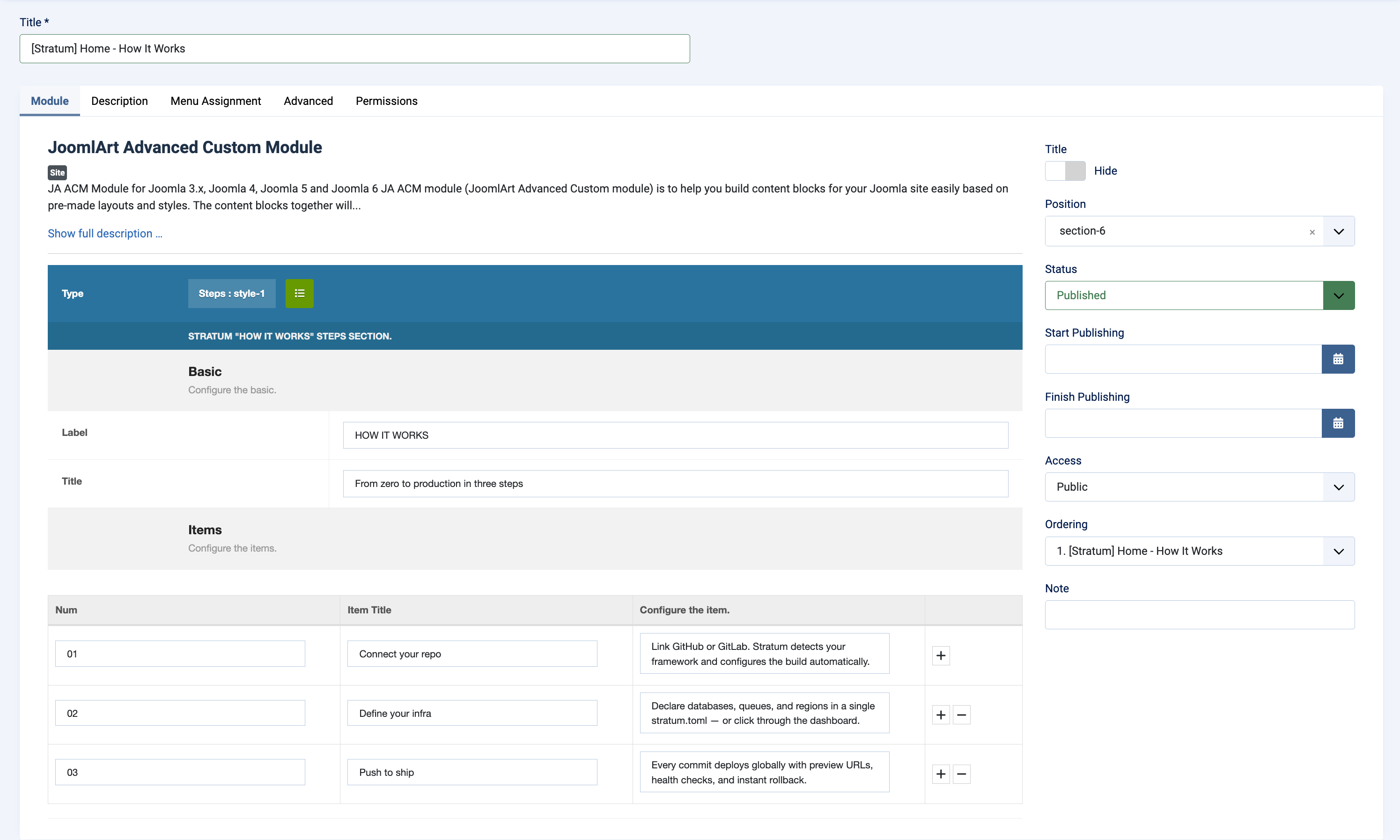
7. [Stratum] Home - How It Works: JA ACM Module

Steps : style-1
Module position: section-6
Module Suffix: NOT USED
Layout: Default
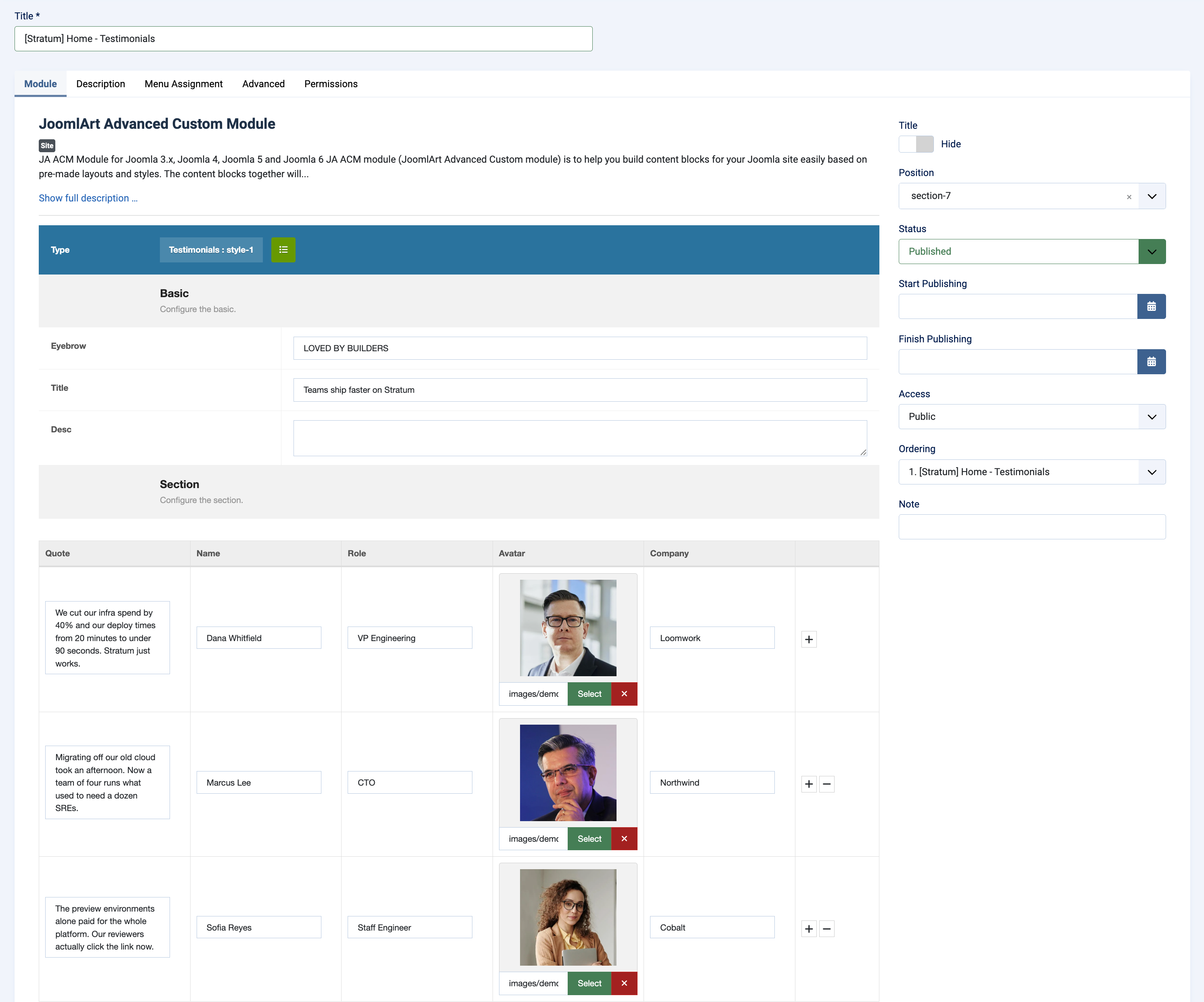
8. [Stratum] Home - Testimonials: JA ACM Module

Testimonials : style-1
Module position: section-7
Module Suffix: NOT USED
Layout: Default
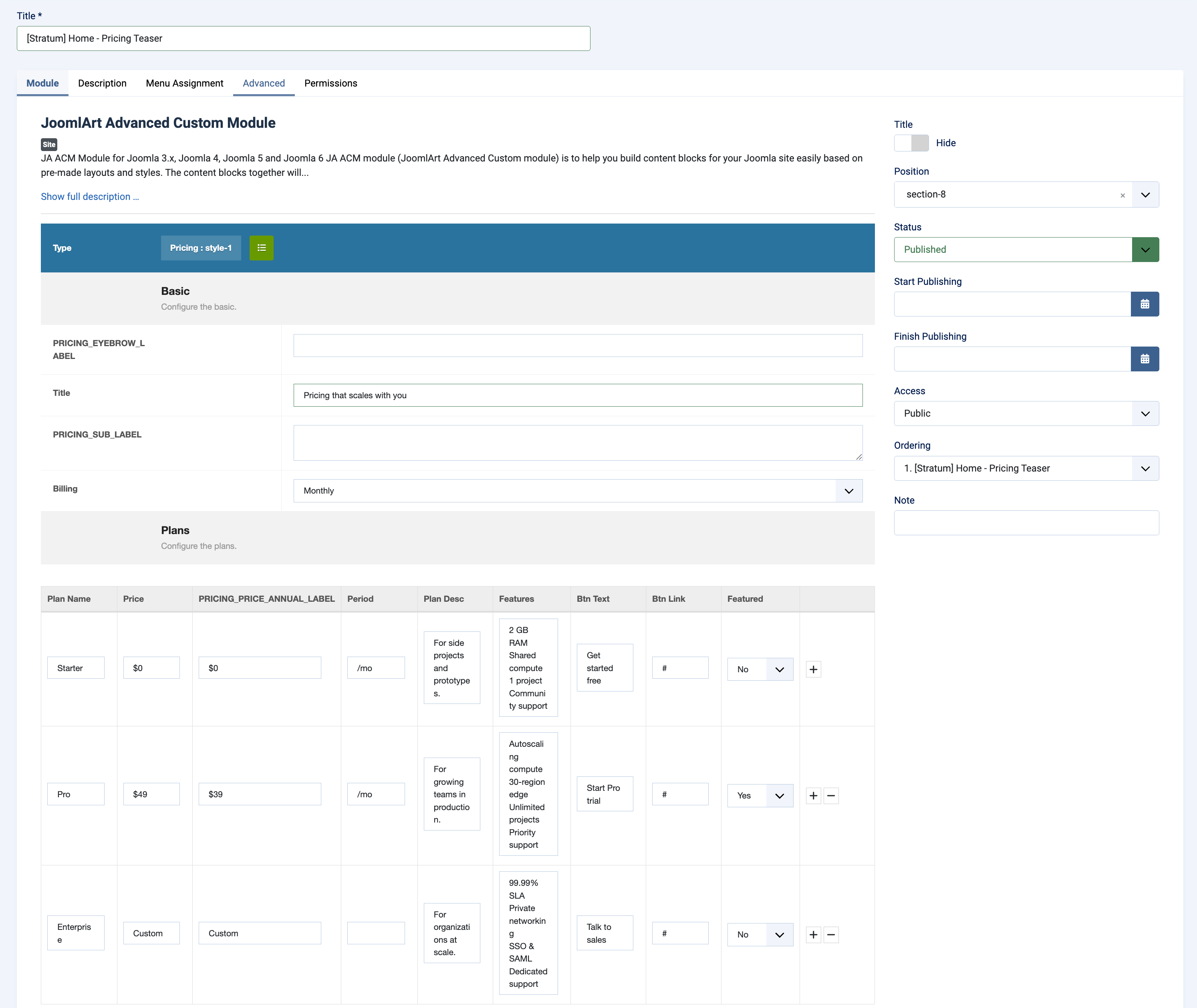
9. [Stratum] Home - Pricing Teaser: JA ACM Module
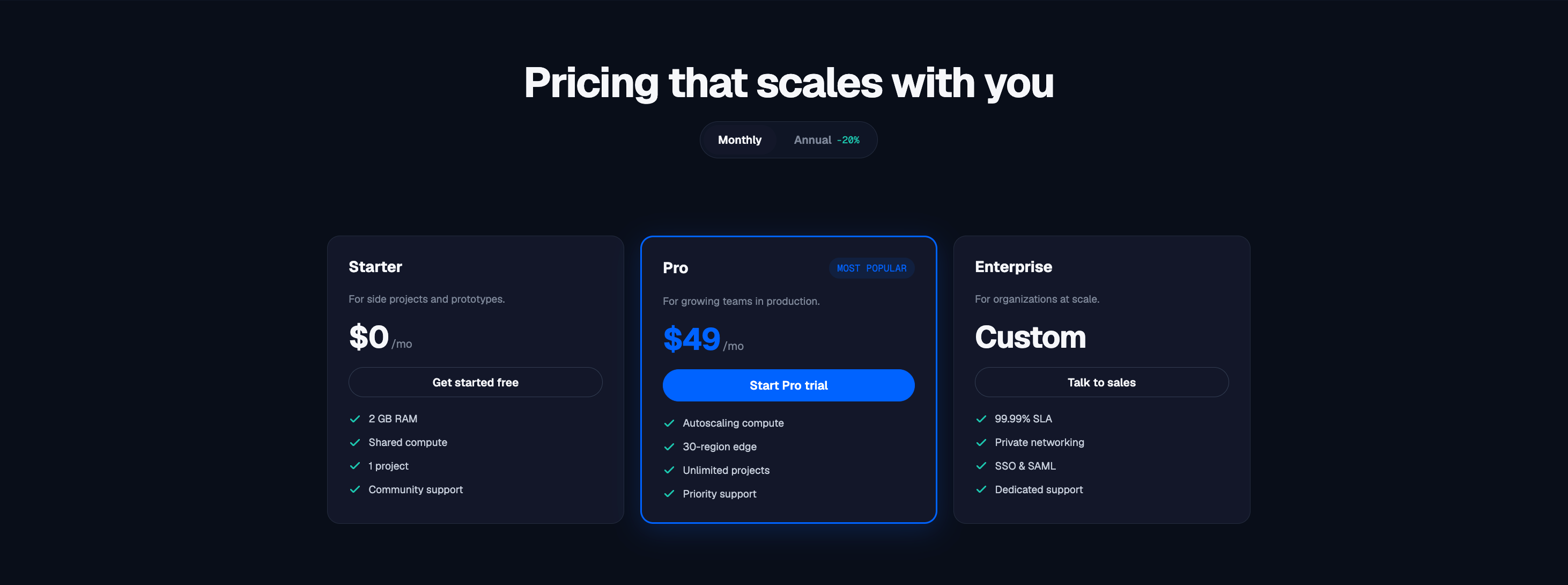
Pricing : style-1
Module position: section-8
Module Suffix: NOT USED
Layout: Default
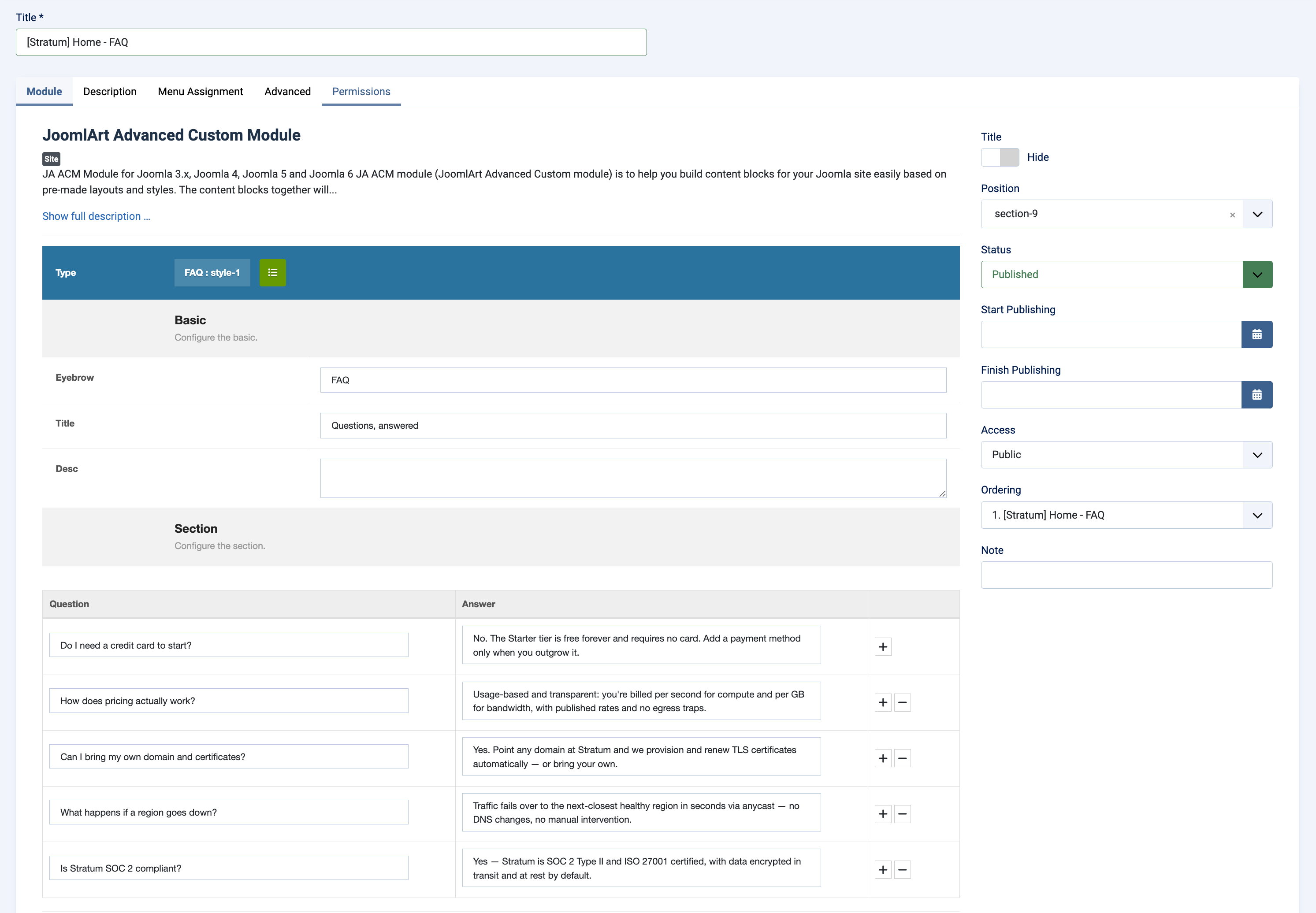
10. [Stratum] Home - FAQ: JA ACM Module

FAQ : style-1
Module position: section-9
Module Suffix: NOT USED
Layout: Default
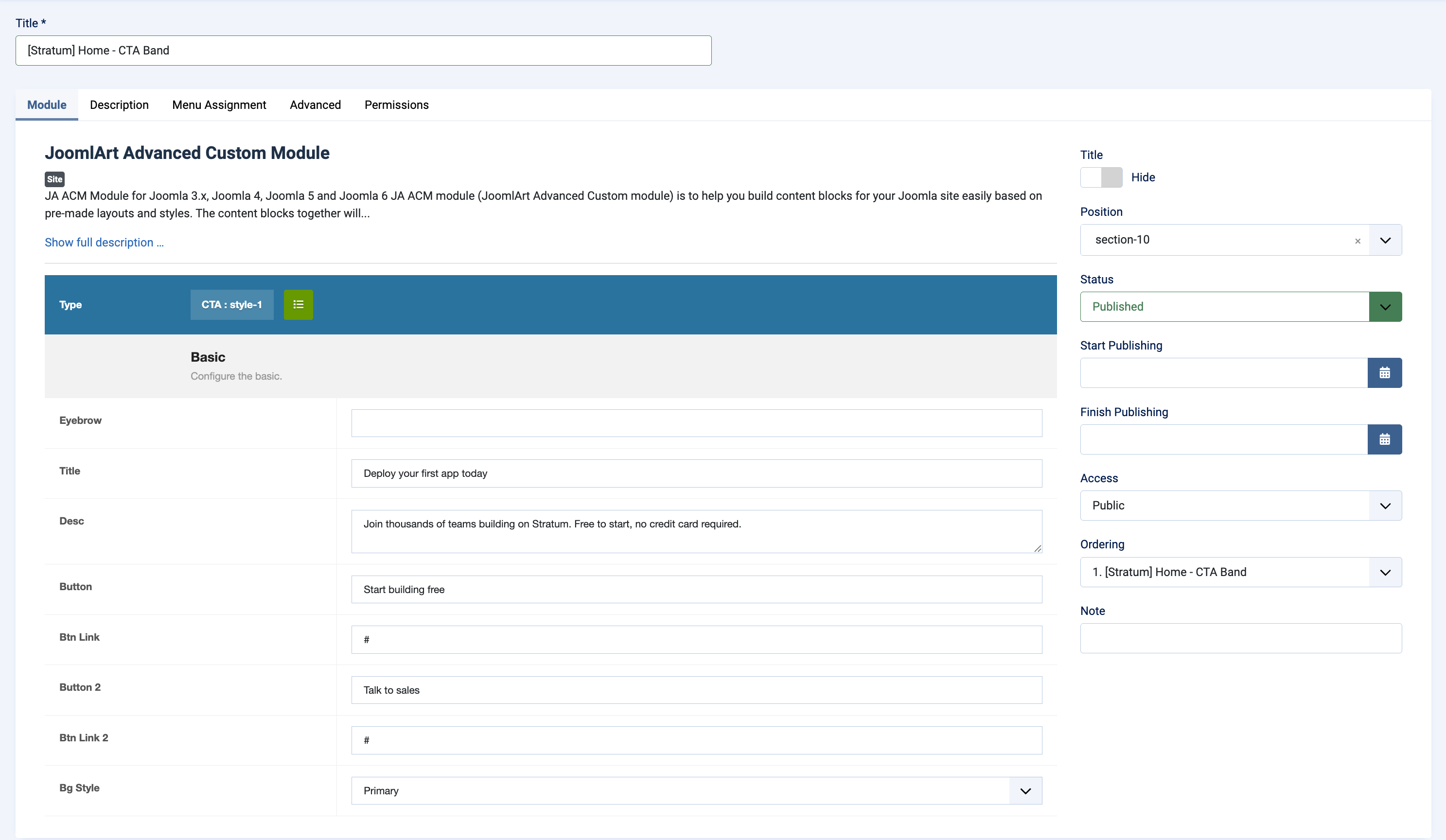
11. [Stratum] Home - CTA Band: JA ACM Module

CTA : style-1
Module position: section-10
Module Suffix: NOT USED
Layout: Default
Upgrade Instruction
Take a full backup
Please always make a backup before proceeding to any of the upgrade processes. In case there is any problem, you can always restore the backup files.
The best method to upgrade JoomlArt products is using JA Extension Manager. The FREE extension brings a new way to manage extensions: upgrade, rollback, remote install, internal repository, compare versions, and more.
1. Set up JA Extension Manager Component
Download this free extension from this link. Install the extension to your website.
Go to Components > JA Extension Manager then selects Service Manager, now set JoomlArt as your default service. Next, hit the "Edit" button then add your account.
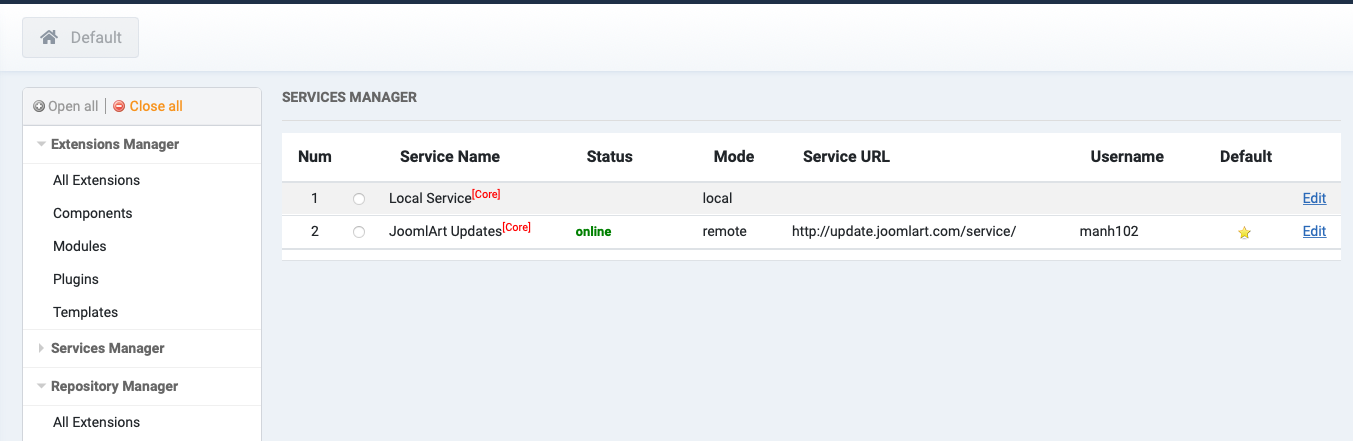
2. Upgrade JA Stratum template
Check the new version of the JA Stratum template. Use the filter to find the JA Stratum template then hit the "Check Update" button.
3. Upgrade T4 Framework and other JA extensions
Using the filter to find the extensions you want to upgrade (JoomlArt products only), hit the "Check Update" button to check for a new version then hit Upgrade Now to upgrade the extension to the latest version.
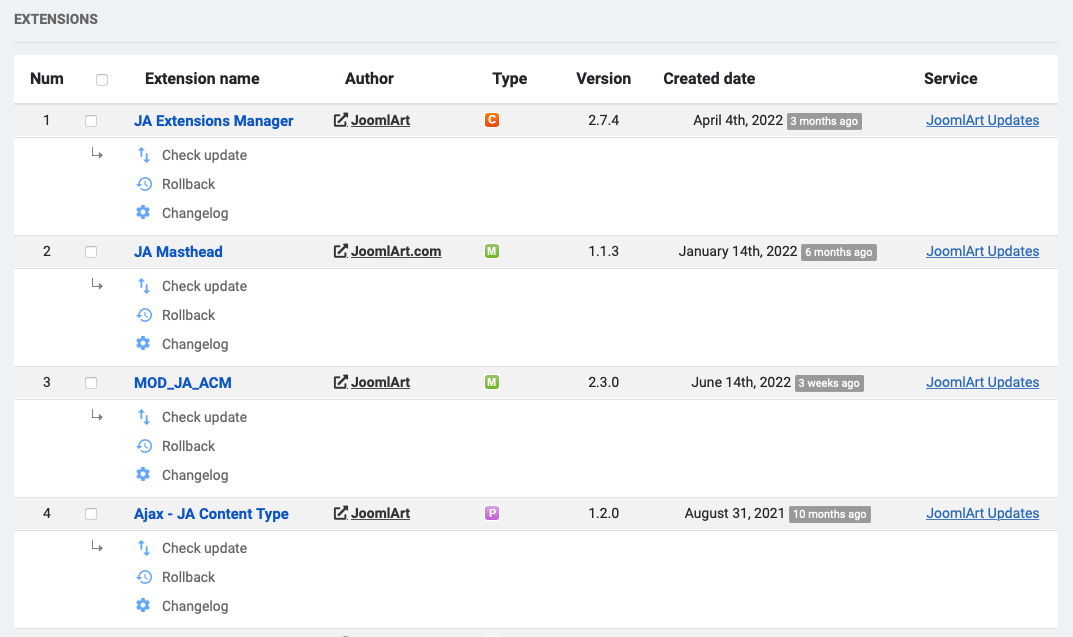
Check out more details about JA Extension manager